• Skip to main content
  • Skip to primary sidebar
  • Skip to footer

Web Developers Etc

Quality Search Engine Optimized Websites at Affordable Prices

  • About Us
  • Services
    • Content Writing
    • Web Design and Development
    • Graphic Design
    • Web Hosting
    • Website Maintenance
  • Contact Us

Wordpress

Jul 08 2012

A Free Tool to Convert Flash to HTML5

Google has created a free tool called Google Swiffy that can convert your flash files into HTML5. This also makes it a lot easier to convert into WordPress:
https://www.google.com/doubleclick/studio/swiffy

If you are a developer, check out the Boilerplate theme to incorporate your HTML5 code into WordPress:
http://wordpress.org/extend/themes/boilerplate

Why Convert from Flash to WordPress

There are several good reasons to convert your site from Flash to WordPress:

  1. Inability for Search engines to index the content – Unlike HTML, Flash sites cannot be read by search engines. Although the animations and graphics can look cool, it is important to remember that search engines are machines and they cannot interpret these things. Thus, it may be more difficult to get a Flash site ranked in the search engines, which could result in a sharp decrease in traffic when compared with an equivalent HTML or WordPress based site.
  2. Flash often loads slower – Slow loading sites can cause people to leave and never come back. It may load quickly on your computer, but some people have slower systems and slower connection speeds. Slow load time can also negatively impact search engine rankings for your site.
  3. Flash doesn’t work on some mobile devices – Apple devices like iPhones and iPads don’t support Flash, which means losing potential customers particularly as mobile device use increases. Here’s an article about Apple’s “war” with Adobe Flash and why they chose not to support Flash in their products – http://www.macworld.com/article/1151117/flash.html

Using Swiffy

To convert your flash files to HTML5, do the following:

  1. On the Swiffy website, click the “Browse” button to find the file on your computer.
  2. Check the checkbox to indicate that you understand the terms of service.
  3. Click the “Upload and convert button”

You can also download the Swiffy Extension (for Adobe Flash CS4 or higher) by clicking on the button on the right.
Written by Brian Liang · Categorized: Wordpress

Mar 10 2012

How to Test Mobile Versions of Your Site Online

The use of mobile devices is growing at a very rapid pace. Making a mobile friendly version of your website is an important step if you want to reach more customers and prospects. Mobile devices have smaller screens and different features than traditional web browsers.

Here are a couple of free useful tools for testing how your site looks on a mobile device:

TestiPhone.com – This website shows what your website would look like on an iPhone. Just click on the URL on the iPhone and type in your website name and press Enter.

iPad Peek – It’s also a good idea to see what your site looks like on an iPad. Click on the URL and enter the website you want to visit to see what it would look like on an iPad.

Written by Brian Liang · Categorized: Wordpress

Mar 02 2012

Digg Digg Now Managed by Buffer App

Attention Digg Digg users. The Digg Digg plugin is now being managed by Buffer App. When you update the plugin, “Buffer” is enabled by default. If you don’t want this enabled, be sure to go into the Digg Digg plugin settings and change it:
1. Click “Digg Digg – Normal Display” (or floating display)
2. Change the settings next to “Buffer” to “none”
3. Click “Update”.

The plugin still works as before, but I didn’t like that the Buffer bookmark was activated by default.

Written by Brian Liang · Categorized: Wordpress · Tagged: buffer, digg digg

Jan 13 2012

5 Simple Steps for Setting Up Your WordPress Blog

Blogging is hot right now, and WordPress is the top platform for blogs. If you are an absolute beginner, a free WordPress blog is probably just the ticket to get you started. Using WordPress can make blogging fun and easy even if you haven’t blogged before; all you may need is a little help. The following are five simple steps to help the absolute beginning blogger get started.

1.) Brainstorm.

Your blog will be better if you know what you want to do with it. There are marketers that say you should do a niche blog, but there is nothing wrong with writing about your life and things you enjoy.

Whatever you choose to write about, be sure to select a topic before doing anything else. Also, select what you want for a title and a corresponding blog address. Your preferred blog address may already been taken, so think of alternate selections.

2.) Go to WordPress.com.

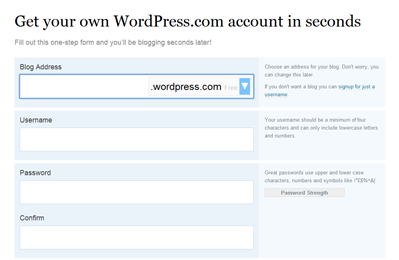
The next step to getting your free WordPress blog couldn’t be easier. Point your browser to their site, and when you get there, click the “sign up” button. Provide the site with basic information including what you want your blog address to be. Select a domain at “wordpress.com” to get your free blog started.

Most web hosts also offer quick and easy setup of WordPress, so consider getting your own domain and hosting if you’re in it for the long haul. Your host can probably help you get it set up too.

3.) Click on the email link.

WordPress will send you an email with a link to activate your new blog. If you do not activate your blog through this email, you won’t be able to get started. Once you activate your blog, the dashboard for your brand new blog will open up in a new browser tab or window.

4.) Watch the video at the top of the page and explore your dashboard.

As a beginning blogger, the dashboard can look a bit daunting. Watch the video at the top of your dashboard first and foremost to get a bit acquainted with the backend of your new free WordPress blog. Without changing anything, start clicking on some of the links to see what precisely some of these elements are and how to use them, as many have instructional information.

5.) Write your first post.

Select “Posts” and click on the title “Hello world!” in toward the center of the page. This is a first post left for you by the folks at WordPress, and it contains basic instructions for how to create your first post. After you delete their message, you are ready to start writing your new WordPress blog! Setting up a blog at wordpress.com is a great free way to try out the WordPress platform if you haven’t already.

Written by Brian Liang · Categorized: Wordpress · Tagged: free, wordpress

  • « Go to Previous Page
  • Page 1
  • Page 2

Primary Sidebar

Web Developers Etc Blog

Read our blog for website marketing tips and tricks and other ideas for improving the effectiveness and user experience on your website.

Free Tips to Help You Grow Your Business

Enter your email below to get free access to our report, 50+ Free Tools & Resources for Business & Marketing Automation.

No Spam & Privacy Policy

Categories

  • WordPress
  • Productivity Tips
  • Uncategorized

Follow Us!

Follow Us on FacebookFollow Us on TwitterFollow Us on Pinterest

Footer

Website and Design Services for Online Marketers

Let us take care of your website hassles so you can focus on growing your business. If you have any questions, feel free to contact us by clicking here.
  • Home
  • Services
  • Privacy Policy
  • Blog

© Copyright 2026 · Web Developers Etc · All Rights Reserved